📲 ZLED Bit Editor
1. 📥 Install the ZLED Bit Editor App
Search ZLED Bit Editor on the App Store (iOS) or Google Play (Android), or use the direct links below.


⚠️ Make sure to grant all permissions when prompted. The app will not function correctly without them.
2. 🔌 Power On the Lights
Turn on your running lights , this powers the controller and activates Bluetooth mode.
3. 📡 Pair with Your Device
-
Launch the ZLED Bit Editor app.
-
On first launch, the app will begin scanning for nearby Bluetooth devices.
-
Select the device labeled ZLEDSxxxx.
4. 🔐 Set Your Access PIN
-
Open the Menu and choose Access ID.
-
Set your security PIN. Once accepted, the Editor Tabs (1–5) will become available.
-
If the tabs do not appear:
-
Turn off the running lights for a few seconds, then power them back on.
-
Restart the app completely and retry the pairing process.
-
5. ☁️ Sync the Default Presets
-
Go to Menu > Sync Presets.
-
This will download default presets from our server to your phone.
-
You can now upload and customize them through the editor tabs.
🧭 Tab Function: In most cases, each tab controls the following
| Tab | Function |
|---|---|
| 1 | Running Lights |
| 2 | Brake Lights |
| 3 | Turn Signals |
| 4 | Reverse Lights |
| 5 | Strobe/Showcase |
-
Use the Left/Right Arrows to browse through saved presets.
-
Use the Up Arrow Icon to upload the selected preset to your lights.
🧙♂️ MagicHat Controls (Advanced)
-
Use switches 1–5 to trigger each function manually.
-
The MagicHat tab lets you adjust internal timing effects in real time.
-
These settings are temporary and will reset when power is turned off.
If your firmware version is 1.89 or higher, these sliders allow you to cycle through different memory slots for additional configurations.
In the ZLED Bit Editor app, the Switchback Frame allows you to temporarily mask or disable specific bits (channels) used in lower-priority functions, giving higher-priority functions full control over those bits without interference.
Each tab in the app represents a lighting function and is assigned a priority level:
-
Tab 1 = Lowest Priority (e.g., Running Lights)
-
Tab 5 = Highest Priority (e.g., Strobes or Showcases)
Here’s how it works:
-
Let’s say Tab 1 uses Bits 1–10 for a running light animation.
-
Tab 2 also wants to use Bits 5–10 for a different brake sequence.
-
Without switchback masking, both animations would overlap and conflict.
By selecting Bits 5–10 in the Switchback Frame of Tab 2, you temporarily block those bits from being activated by Tab 1 whenever Tab 2 is active. This ensures that each function can play out cleanly with no overlap or interference.
🛠️ Tip: Use switchback masking anytime you need clean separation between overlapping bit channels across functions.
🔧 ZLED Bit Editor App – Editor Tab Reference
 |
Controller Selector / Memory Slot Selector
Firmware <1.5: Select which controller to configure (if multiple are paired). |
 |
Sequence Speed
Adjust the animation playback speed: |
 |
Loop Mode
Controls how the animation behaves at the end: |
 |
Brightness
Sets the overall output intensity: |
 |
Switchback Delay Timer
Starts a delay after the sequence is turned off, before lower-priority tabs are allowed to take back control of the selected bits. |
 |
Saved Preset Cycle
Use the arrows to browse through your saved animation presets. |
 🧠 Bit Editor
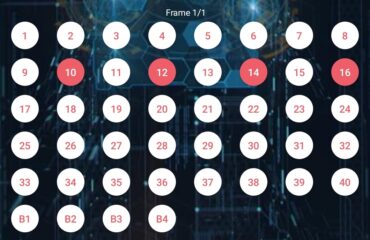
The ZLED Bit Editor allows you to control up to 40 output channels, each powering an individual LED or LED group. These outputs are represented by circular toggle switches in the app.
💡 Swipe left or right to cycle between the Switchback Frame and your Frame(s).
Each frame is a snapshot showing which channels (bits) are active. Tapping a circle turns it red, meaning that bit will be turned ON during that frame.
You can build animations by adding multiple frames:
- Frame 1: Activates your selected LEDs
- Frame 2: Changes to a new configuration
- The sequence plays frame by frame like an animation
Depending on your settings:
- The final frame can either stay on or loop back to Frame 1
- You control this behavior with the loop mode slider
This gives you full control over turn signals, brake effects, running light designs, and advanced light shows.
🛠️ Bottom Menu Functions
 |
Delete Frame
Removes the currently selected frame from the sequence. |
 |
Add Frame
Creates a new blank frame to build upon. |
 |
Upload Preset
Sends your current animation or preset to the controller. |
The ZLED Bit Editor lets you create dynamic lighting animations by combining multiple frames. Each frame is a snapshot of which LEDs (channels) are active.
🧠 Frame Logic:
-
Each circle in the editor represents an output channel.
-
Red = ON, White = OFF — tapping a circle toggles that channel’s state for the current frame.
-
When you add more frames, the app will play them in order to create an animation.
🔧 Building a Sequence:
-
Tap circles to turn bits ON or OFF for Frame 1.
-
Tap ➕ Add Frame to insert another frame.
-
Adjust the active bits in the new frame to create visual motion.
-
Repeat as needed.
-
Choose how the animation behaves using the Loop Mode slider:
-
0 = Holdon the last frame -
1 = Loopthe animation back to Frame 1
-
-
Control animation playback speed using the Sequence Speed slider (
1 = slowest,15 = fastest). -
Once you’re ready, tap 📤 Upload Preset to send the sequence to your lights.
⚠️ Frame Limitations Based on Firmware:
-
Firmware 1.6 and below:
⏳ Max 200 frames per sequence. The top slider controls which controller is being edited (if more than one is paired). -
Firmware 1.7 and above:
🔄 Max 35 frames per sequence, but now supports multiple memory banks.
The top slider becomes a Memory Bank Selector — letting you upload multiple presets and instantly switch between them!
The Switchback Frame acts as a temporary mask that disables specific channels (bits) from any lower-priority tabs while a higher-priority function is active.
In the ZLED Bit Editor app:
-
Each tab represents a lighting function (e.g. Tab 1 = Running Lights, Tab 2 = Brakes, up to Tab 5 = Strobes).
-
Tabs follow a priority system: Tab 1 has the lowest, Tab 5 has the highest.
Let’s say:
-
Tab 1 uses bits 1–10 for a running light pattern.
-
Tab 2 (brake lights) also needs to use bits 5–10.
If both tabs share the same channels without masking, the sequences will blend or conflict.
By assigning bits 5–10 in Tab 2’s Switchback Frame, those bits are temporarily disabled from Tab 1’s output while Tab 2 is active.
This allows the brake light (Tab 2) to cleanly override any shared channels from the running lights (Tab 1), avoiding flickering or overlapping effects.
✅ Best practice: Always use the switchback frame when two tabs share the same bits but need to behave independently.
If the ZLED Bit Editor app fails to connect or doesn’t show the editor tabs, it’s usually due to one of the following issues:
✅ Checklist to Resolve the Issue:
-
Ensure Lights Are Powered On
-
The lights must be on (running lights active) for the Bluetooth module to power up and broadcast.
-
-
App Permissions
-
Make sure the app has all permissions enabled — especially Bluetooth and Location. Without these, the scan and connection process will fail (Android 10+ requires location access to scan Bluetooth).
-
-
First-Time Pairing
-
On first launch, the app will scan for nearby devices. Look for a device named ZLEDSxxxx.
-
Tap the name to connect. If nothing appears, turn your lights off for 5 seconds and back on, then restart the app.
-
-
Set Your Access ID
-
After connecting, open the menu and set your Access ID (PIN). This is required to unlock the editor tabs.
-
If you skip this step, tabs will remain hidden.
-
-
No Tabs Showing After Setup?
-
Fully close the app and power cycle the lights.
-
Open the app again; it should auto-connect and unlock the tabs.
-
-
Firmware Compatibility
-
Ensure your controller has firmware 1.60 or above for best compatibility with recent app versions.
-
💡 If all else fails:
-
Try using another phone/tablet to rule out device-specific Bluetooth or permission issues.
-
Contact us with your controller version and app behavior for direct help.
🔐 What is the Access ID, and why is it required?
The Access ID is a unique, hardcoded security code embedded into the firmware of each ZLEDS controller. It acts as a digital key to unlock access to the programming features of the ZLED Bit Editor app.
When launching the app for the first time, you’ll be prompted to enter this ID:
-
If the correct Access ID is entered, the editor tabs will unlock and become available.
-
If the wrong Access ID is used, the app will display a black screen with an exclamation icon, and the editor functions will remain hidden.
This system ensures that only authorized users can make changes to the light behavior.
If the app isn’t connecting to your ZLEDS controller, try the following troubleshooting steps:
-
Ensure your lights are powered on.
The Bluetooth module only activates when the tail lights receive power (usually when running lights are on). -
Enable Bluetooth permissions.
Make sure the ZLED Bit Editor app has all required permissions (Bluetooth, location, etc.) — especially on Android 11+. -
Select the correct device.
When the Bluetooth scan list appears, select the device labeledZLEDS-XXXX. -
Restart the app and power cycle the lights.
If tabs do not appear or the screen remains black:-
Close the app completely.
-
Turn the lights off for 5–10 seconds.
-
Turn the lights back on.
-
Reopen the app.
-
-
Verify Access ID.
If the wrong Access ID is entered, the app will block access with a black screen and exclamation icon.
If issues persist, try reinstalling the app or contacting ZLEDS support for further assistance.
Technically, yes — but it’s important to understand that resetting the controller completely wipes all memory, including the stored presets for every function (Running, Brake, Signal, Reverse, and Strobes). This will disable all lighting behavior until you re-upload new presets.
After a reset, the tail lights will no longer respond as expected until each tab is reprogrammed using the ZLED Bit Editor App.
🧪 Tip: Use the MagicHat 1–5 switches to verify that each function is properly assigned after reprogramming.
⚠️ Warning: Only perform a reset if you are prepared to fully reconfigure your lights from scratch.
Each tab in the ZLED Bit Editor App corresponds to a lighting function on your tail light setup:
| Tab | Function |
|---|---|
| Tab 1 | Running Lights / DRLs |
| Tab 2 | Brake Lights |
| Tab 3 | Turn Signals |
| Tab 4 | Reverse Lights |
| Tab 5 | Strobes / Showcase Effects |
Each tab has its own independent sequence and configuration. When uploading a preset in a tab, it saves that behavior for that specific function.
💡 Tip: Use the switchback options and memory bank slider to control priority and layering between tabs if using overlapping bit/channels.
The “Sync Presets” function downloads a set of default animation presets from ZLEDS’ online repository into your phone.
These presets include example configurations for:
-
Running lights
-
Brake sequences
-
Turn signals
-
Strobes
-
Reverse lights
Once synced, you can:
-
Browse them using the arrows inside each tab.
-
Upload them directly to your tail light controller.
-
Use them as a starting point for your own custom animations.
🔁 Note: Syncing does not overwrite your lights — it only loads new options into the app’s local memory.
To safely reset or wipe all memory presets on your ZLEDS controller, follow this exact procedure:
🛠️ Reset Instructions:
-
Make sure the correct Access ID is set and accepted.
If the wrong ID is used, the controller will not respond properly (you’ll see a black screen with an exclamation icon). -
Open the ZLED Bit Editor App.
-
Go to the Menu > Access ID section.
-
In the Access ID field, type the word:
RESET(in all caps). -
Wait a few seconds after submitting.
-
Go back to Menu > Access ID, and now enter your original PIN (security code).
-
Power off the tail lights, wait 3–5 seconds, and power them back on.
🧠 What happens next?
All memory slots and stored functions will be wiped. The controller is now blank and must be reprogrammed.
✅ Use the Magic Hat switches to verify functions are cleared.
📤 Upload all presets again using the Bit Editor app or sync defaults from the cloud.
To download the official default presets from the ZLEDS server and store them in your app:
🔧 Steps to Sync Default Presets:
-
Ensure your phone has internet access.
Wi-Fi or mobile data is required to access cloud files. -
Make sure you’re connected to the ZLEDS controller.
The app must be actively paired with the lights, and the correct Access ID must be set. -
Open the ZLED Bit Editor App.
-
Tap the ☰ Menu icon, then select “Sync Presets”.
-
Wait for the download to complete.
The app will automatically import the default preset files into memory.
📝 Tip:
Once synced, use the arrows at the top of each tab (1–5) to browse through the downloaded presets, then press the upload icon to send them to the tail lights.
The Switchback Frame is a feature used to prioritize lighting behavior between overlapping functions like running lights, signals, or strobes.
🔧 How it Works:
Each function tab (1–5) in the ZLED Bit Editor is assigned a priority:
-
Tab 1 has the lowest priority
-
Tab 5 has the highest priority
When two tabs use the same output bits, the higher-priority tab can temporarily override the lower one using the Switchback Frame setting.
For example:
-
If Tab 1 uses bits 1–10 for running lights
-
And Tab 2 (turn signal) also uses bits 5–10
-
You can enable bits 5–10 in the Switchback Frame of Tab 2
💡 Result: When Tab 2 is active, it masks bits 5–10 from Tab 1 temporarily — ensuring that the signal animation cleanly overrides the running lights.
🛑 Important:
Switchback only masks the selected bits temporarily. When the higher-priority function finishes, control returns to the lower-priority tab automatically.
No — once a reset is performed, all memory slots are erased and the lights will no longer function until all tabs are reprogrammed.
✅ Always verify the full light functionality using the Magic Hat switches before performing a reset, and consider syncing your presets to the app beforehand.
The Upload Preset button sends your current tab’s animation sequence (all configured frames) to the ZLED controller’s memory slot selected via the top slider.
Each tab (1–5) stores a different function (e.g. Running, Brake, Signal), so you must upload presets tab by tab.
The app uses a custom internal structure to store presets in the app’s memory — not as user-visible files. Currently, there’s no manual export/import, but all presets remain stored on your phone after download via the “Sync Presets” option.
This indicates the Access ID you’ve entered doesn’t match the controller’s ID.
Go to Menu → Access ID, enter the correct code (often written on the controller label), and restart the app. If the ID is correct, all editor tabs will become available.
📲 ZLED Bit Editor Sequence Programmer
1. 📥 Install the ZLED Bit Editor App
Search ZLED Bit Editor on the App Store (iOS) or Google Play (Android), or use the direct links below.
⚠️ Make sure to grant all permissions when prompted. The app will not function correctly without them.
2. 🔌 Power On the Lights
Turn on your running lights , this powers the controller and activates Bluetooth mode.
3. 📡 Pair with Your Device
-
Launch the ZLED Bit Editor app.
-
On first launch, the app will begin scanning for nearby Bluetooth devices.
-
Select the device labeled ZLEDSxxxx.
4. 🔐 Set Your Access PIN
-
Open the Menu and choose Access ID.
-
Set your security PIN. Once accepted, the Editor Tabs (1–5) will become available.
-
If the tabs do not appear:
-
Turn off the running lights for a few seconds, then power them back on.
-
Restart the app completely and retry the pairing process.
-
5. ☁️ Sync the Default Presets
-
Go to Menu > Sync Presets.
-
This will download default presets from our server to your phone.
-
You can now upload and customize them through the editor tabs.
🧭 Tab Function: In most cases, each tab controls the following
| Tab | Function |
|---|---|
| 1 | Running Lights |
| 2 | Brake Lights |
| 3 | Turn Signals |
| 4 | Reverse Lights |
| 5 | Strobe/Showcase |
-
Use the Left/Right Arrows to browse through saved presets.
-
Use the Up Arrow Icon to upload the selected preset to your lights.
🧙♂️ MagicHat Controls (Advanced)
-
Use switches 1–5 to trigger each function manually.
-
The MagicHat tab lets you adjust internal timing effects in real time.
-
These settings are temporary and will reset when power is turned off.
If your firmware version is 1.89 or higher, these sliders allow you to cycle through different memory slots for additional configurations.
In the ZLED Bit Editor app, the Switchback Frame allows you to temporarily mask or disable specific bits (channels) used in lower-priority functions, giving higher-priority functions full control over those bits without interference.
Each tab in the app represents a lighting function and is assigned a priority level:
-
Tab 1 = Lowest Priority (e.g., Running Lights)
-
Tab 5 = Highest Priority (e.g., Strobes or Showcases)
Here’s how it works:
-
Let’s say Tab 1 uses Bits 1–10 for a running light animation.
-
Tab 2 also wants to use Bits 5–10 for a different brake sequence.
-
Without switchback masking, both animations would overlap and conflict.
By selecting Bits 5–10 in the Switchback Frame of Tab 2, you temporarily block those bits from being activated by Tab 1 whenever Tab 2 is active. This ensures that each function can play out cleanly with no overlap or interference.
🛠️ Tip: Use switchback masking anytime you need clean separation between overlapping bit channels across functions.
🔧 ZLED Bit Editor App – Editor Tab Reference
|
Controller Selector / Memory Slot Selector
Firmware <1.5: Select which controller to configure (if multiple are paired). |
|
Sequence Speed
Adjust the animation playback speed: |
|
Loop Mode
Controls how the animation behaves at the end: |
|
Brightness
Sets the overall output intensity: |
|
Switchback Delay Timer
Starts a delay after the sequence is turned off, before lower-priority tabs are allowed to take back control of the selected bits. |
|
Saved Preset Cycle
Use the arrows to browse through your saved animation presets. |
🧠 Bit Editor
The ZLED Bit Editor allows you to control up to 40 output channels, each powering an individual LED or LED group. These outputs are represented by circular toggle switches in the app.
💡 Swipe left or right to cycle between the Switchback Frame and your Frame(s).
Each frame is a snapshot showing which channels (bits) are active. Tapping a circle turns it red, meaning that bit will be turned ON during that frame.
You can build animations by adding multiple frames:
- Frame 1: Activates your selected LEDs
- Frame 2: Changes to a new configuration
- The sequence plays frame by frame like an animation
Depending on your settings:
- The final frame can either stay on or loop back to Frame 1
- You control this behavior with the loop mode slider
This gives you full control over turn signals, brake effects, running light designs, and advanced light shows.
🛠️ Bottom Menu Functions
|
Delete Frame
Removes the currently selected frame from the sequence. |
|
Add Frame
Creates a new blank frame to build upon. |
|
Upload Preset
Sends your current animation or preset to the controller. |
The ZLED Bit Editor lets you create dynamic lighting animations by combining multiple frames. Each frame is a snapshot of which LEDs (channels) are active.
🧠 Frame Logic:
-
Each circle in the editor represents an output channel.
-
Red = ON, White = OFF — tapping a circle toggles that channel’s state for the current frame.
-
When you add more frames, the app will play them in order to create an animation.
🔧 Building a Sequence:
-
Tap circles to turn bits ON or OFF for Frame 1.
-
Tap ➕ Add Frame to insert another frame.
-
Adjust the active bits in the new frame to create visual motion.
-
Repeat as needed.
-
Choose how the animation behaves using the Loop Mode slider:
-
0 = Holdon the last frame -
1 = Loopthe animation back to Frame 1
-
-
Control animation playback speed using the Sequence Speed slider (
1 = slowest,15 = fastest). -
Once you’re ready, tap 📤 Upload Preset to send the sequence to your lights.
⚠️ Frame Limitations Based on Firmware:
-
Firmware 1.6 and below:
⏳ Max 200 frames per sequence. The top slider controls which controller is being edited (if more than one is paired). -
Firmware 1.7 and above:
🔄 Max 35 frames per sequence, but now supports multiple memory banks.
The top slider becomes a Memory Bank Selector — letting you upload multiple presets and instantly switch between them!
The Switchback Frame acts as a temporary mask that disables specific channels (bits) from any lower-priority tabs while a higher-priority function is active.
In the ZLED Bit Editor app:
-
Each tab represents a lighting function (e.g. Tab 1 = Running Lights, Tab 2 = Brakes, up to Tab 5 = Strobes).
-
Tabs follow a priority system: Tab 1 has the lowest, Tab 5 has the highest.
Let’s say:
-
Tab 1 uses bits 1–10 for a running light pattern.
-
Tab 2 (brake lights) also needs to use bits 5–10.
If both tabs share the same channels without masking, the sequences will blend or conflict.
By assigning bits 5–10 in Tab 2’s Switchback Frame, those bits are temporarily disabled from Tab 1’s output while Tab 2 is active.
This allows the brake light (Tab 2) to cleanly override any shared channels from the running lights (Tab 1), avoiding flickering or overlapping effects.
✅ Best practice: Always use the switchback frame when two tabs share the same bits but need to behave independently.
If the ZLED Bit Editor app fails to connect or doesn’t show the editor tabs, it’s usually due to one of the following issues:
✅ Checklist to Resolve the Issue:
-
Ensure Lights Are Powered On
-
The lights must be on (running lights active) for the Bluetooth module to power up and broadcast.
-
-
App Permissions
-
Make sure the app has all permissions enabled — especially Bluetooth and Location. Without these, the scan and connection process will fail (Android 10+ requires location access to scan Bluetooth).
-
-
First-Time Pairing
-
On first launch, the app will scan for nearby devices. Look for a device named ZLEDSxxxx.
-
Tap the name to connect. If nothing appears, turn your lights off for 5 seconds and back on, then restart the app.
-
-
Set Your Access ID
-
After connecting, open the menu and set your Access ID (PIN). This is required to unlock the editor tabs.
-
If you skip this step, tabs will remain hidden.
-
-
No Tabs Showing After Setup?
-
Fully close the app and power cycle the lights.
-
Open the app again; it should auto-connect and unlock the tabs.
-
-
Firmware Compatibility
-
Ensure your controller has firmware 1.60 or above for best compatibility with recent app versions.
-
💡 If all else fails:
-
Try using another phone/tablet to rule out device-specific Bluetooth or permission issues.
-
Contact us with your controller version and app behavior for direct help.
🔐 What is the Access ID, and why is it required?
The Access ID is a unique, hardcoded security code embedded into the firmware of each ZLEDS controller. It acts as a digital key to unlock access to the programming features of the ZLED Bit Editor app.
When launching the app for the first time, you’ll be prompted to enter this ID:
-
If the correct Access ID is entered, the editor tabs will unlock and become available.
-
If the wrong Access ID is used, the app will display a black screen with an exclamation icon, and the editor functions will remain hidden.
This system ensures that only authorized users can make changes to the light behavior.
If the app isn’t connecting to your ZLEDS controller, try the following troubleshooting steps:
-
Ensure your lights are powered on.
The Bluetooth module only activates when the tail lights receive power (usually when running lights are on). -
Enable Bluetooth permissions.
Make sure the ZLED Bit Editor app has all required permissions (Bluetooth, location, etc.) — especially on Android 11+. -
Select the correct device.
When the Bluetooth scan list appears, select the device labeledZLEDS-XXXX. -
Restart the app and power cycle the lights.
If tabs do not appear or the screen remains black:-
Close the app completely.
-
Turn the lights off for 5–10 seconds.
-
Turn the lights back on.
-
Reopen the app.
-
-
Verify Access ID.
If the wrong Access ID is entered, the app will block access with a black screen and exclamation icon.
If issues persist, try reinstalling the app or contacting ZLEDS support for further assistance.
Technically, yes — but it’s important to understand that resetting the controller completely wipes all memory, including the stored presets for every function (Running, Brake, Signal, Reverse, and Strobes). This will disable all lighting behavior until you re-upload new presets.
After a reset, the tail lights will no longer respond as expected until each tab is reprogrammed using the ZLED Bit Editor App.
🧪 Tip: Use the MagicHat 1–5 switches to verify that each function is properly assigned after reprogramming.
⚠️ Warning: Only perform a reset if you are prepared to fully reconfigure your lights from scratch.
Each tab in the ZLED Bit Editor App corresponds to a lighting function on your tail light setup:
| Tab | Function |
|---|---|
| Tab 1 | Running Lights / DRLs |
| Tab 2 | Brake Lights |
| Tab 3 | Turn Signals |
| Tab 4 | Reverse Lights |
| Tab 5 | Strobes / Showcase Effects |
Each tab has its own independent sequence and configuration. When uploading a preset in a tab, it saves that behavior for that specific function.
💡 Tip: Use the switchback options and memory bank slider to control priority and layering between tabs if using overlapping bit/channels.
The “Sync Presets” function downloads a set of default animation presets from ZLEDS’ online repository into your phone.
These presets include example configurations for:
-
Running lights
-
Brake sequences
-
Turn signals
-
Strobes
-
Reverse lights
Once synced, you can:
-
Browse them using the arrows inside each tab.
-
Upload them directly to your tail light controller.
-
Use them as a starting point for your own custom animations.
🔁 Note: Syncing does not overwrite your lights — it only loads new options into the app’s local memory.
To safely reset or wipe all memory presets on your ZLEDS controller, follow this exact procedure:
🛠️ Reset Instructions:
-
Make sure the correct Access ID is set and accepted.
If the wrong ID is used, the controller will not respond properly (you’ll see a black screen with an exclamation icon). -
Open the ZLED Bit Editor App.
-
Go to the Menu > Access ID section.
-
In the Access ID field, type the word:
RESET(in all caps). -
Wait a few seconds after submitting.
-
Go back to Menu > Access ID, and now enter your original PIN (security code).
-
Power off the tail lights, wait 3–5 seconds, and power them back on.
🧠 What happens next?
All memory slots and stored functions will be wiped. The controller is now blank and must be reprogrammed.
✅ Use the Magic Hat switches to verify functions are cleared.
📤 Upload all presets again using the Bit Editor app or sync defaults from the cloud.
To download the official default presets from the ZLEDS server and store them in your app:
🔧 Steps to Sync Default Presets:
-
Ensure your phone has internet access.
Wi-Fi or mobile data is required to access cloud files. -
Make sure you’re connected to the ZLEDS controller.
The app must be actively paired with the lights, and the correct Access ID must be set. -
Open the ZLED Bit Editor App.
-
Tap the ☰ Menu icon, then select “Sync Presets”.
-
Wait for the download to complete.
The app will automatically import the default preset files into memory.
📝 Tip:
Once synced, use the arrows at the top of each tab (1–5) to browse through the downloaded presets, then press the upload icon to send them to the tail lights.
The Switchback Frame is a feature used to prioritize lighting behavior between overlapping functions like running lights, signals, or strobes.
🔧 How it Works:
Each function tab (1–5) in the ZLED Bit Editor is assigned a priority:
-
Tab 1 has the lowest priority
-
Tab 5 has the highest priority
When two tabs use the same output bits, the higher-priority tab can temporarily override the lower one using the Switchback Frame setting.
For example:
-
If Tab 1 uses bits 1–10 for running lights
-
And Tab 2 (turn signal) also uses bits 5–10
-
You can enable bits 5–10 in the Switchback Frame of Tab 2
💡 Result: When Tab 2 is active, it masks bits 5–10 from Tab 1 temporarily — ensuring that the signal animation cleanly overrides the running lights.
🛑 Important:
Switchback only masks the selected bits temporarily. When the higher-priority function finishes, control returns to the lower-priority tab automatically.
No — once a reset is performed, all memory slots are erased and the lights will no longer function until all tabs are reprogrammed.
✅ Always verify the full light functionality using the Magic Hat switches before performing a reset, and consider syncing your presets to the app beforehand.
The Upload Preset button sends your current tab’s animation sequence (all configured frames) to the ZLED controller’s memory slot selected via the top slider.
Each tab (1–5) stores a different function (e.g. Running, Brake, Signal), so you must upload presets tab by tab.
The app uses a custom internal structure to store presets in the app’s memory — not as user-visible files. Currently, there’s no manual export/import, but all presets remain stored on your phone after download via the “Sync Presets” option.
This indicates the Access ID you’ve entered doesn’t match the controller’s ID.
Go to Menu → Access ID, enter the correct code (often written on the controller label), and restart the app. If the ID is correct, all editor tabs will become available.