
🔧 ZLED Bit Editor App – Editor Tab Reference
 |
Controller Selector / Memory Slot Selector
Firmware <1.5: Select which controller to configure (if multiple are paired). |
 |
Sequence Speed
Adjust the animation playback speed: |
 |
Loop Mode
Controls how the animation behaves at the end: |
 |
Brightness
Sets the overall output intensity: |
 |
Switchback Delay Timer
Starts a delay after the sequence is turned off, before lower-priority tabs are allowed to take back control of the selected bits. |
 |
Saved Preset Cycle
Use the arrows to browse through your saved animation presets. |
 🧠 Bit Editor
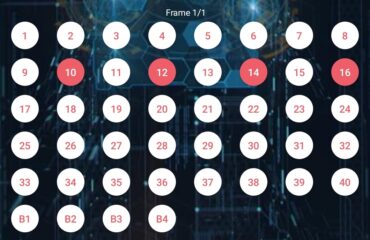
The ZLED Bit Editor allows you to control up to 40 output channels, each powering an individual LED or LED group. These outputs are represented by circular toggle switches in the app.
💡 Swipe left or right to cycle between the Switchback Frame and your Frame(s).
Each frame is a snapshot showing which channels (bits) are active. Tapping a circle turns it red, meaning that bit will be turned ON during that frame.
You can build animations by adding multiple frames:
- Frame 1: Activates your selected LEDs
- Frame 2: Changes to a new configuration
- The sequence plays frame by frame like an animation
Depending on your settings:
- The final frame can either stay on or loop back to Frame 1
- You control this behavior with the loop mode slider
This gives you full control over turn signals, brake effects, running light designs, and advanced light shows.
🛠️ Bottom Menu Functions
 |
Delete Frame
Removes the currently selected frame from the sequence. |
 |
Add Frame
Creates a new blank frame to build upon. |
 |
Upload Preset
Sends your current animation or preset to the controller. |
Leave a Reply
You must be logged in to post a comment.